
Welcome to Clarity & Purpose
Your 30-day guided journey to find direction, reconnect with what matters, and move forward with intention.
Open Clarity & Purpose AppSign in with the same email you used at checkout
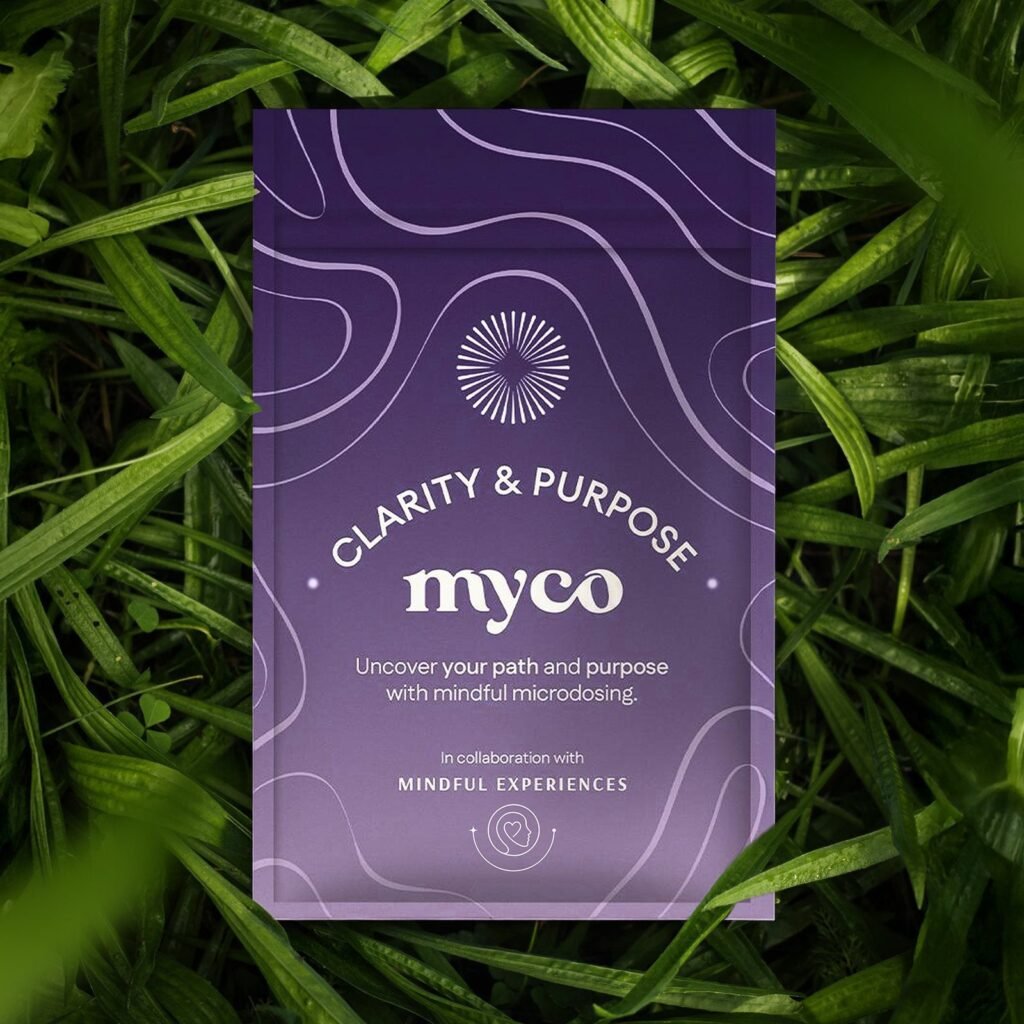

Start here
Ready in 30 seconds
- 1
Open the app
Tap Open Clarity & Purpose App above.
- 2
Sign in
With your email, Google or Facebook. Use the same email you used at checkout.
- Recommended3
Add to Home Screen
For a full-screen, app-like experience. The steps are below.
What’s inside
Your daily companion
Daily reflection prompts
To surface what matters most and quiet the mental noise.
Guided journaling exercises
To uncover your values, patterns and what you truly want.
Single-focus intention setting
One meaningful thing to move toward each day.
Simple check-ins
For emotional clarity, sense of direction, alignment and inner ease.
Daily meditations and mini-lessons
For self-understanding, perspective shifts and letting go.
Weekly deep reflection modules
To integrate insights and track your inner evolution.
30-min intro call with Lara Ferreira
From Mindful Experiences, to set your intention and personalise your journey.
Progress and streaks
To keep you showing up. Supportive, not pressure.
Recommended
Add the app to your Home Screen
It then opens full-screen from its own icon, just like an app.
 Clarity & PurposeTap to open
iPhone / iPad
Safari only- Open clarityapp.mycowellbeing.com in Safari. iOS only supports Add to Home Screen from Safari.
- Tap the Share icon (square with the arrow).
- Tap Add to Home Screen → Add.
- Launch from the new icon: it opens full-screen.
Tip: if you opened the link in Chrome on iOS, share it to Open in Safari first, then follow the steps above.
Android
Chrome- Open clarityapp.mycowellbeing.com in Chrome.
- Tap the ⋮ menu (top right).
- Choose Add to Home screen or Install app → Add.
- Open from the new icon: it launches full-screen.
Samsung Internet: Menu → Add page to → Home screen.
Quick usage tips
Make the most of each day
Morning, with food
Take it in the morning with food and water, and keep caffeine light for 2 to 3 hours.
One meditation, one task
Try the day’s meditation and one small grounding task: a walk, breathwork or a body scan.
Pause and breathe
If you feel edgy or overstimulated: pause, drink water and take 5 slow breaths. Adjust the dose gently next time.
Troubleshooting
Something not working?
Can’t sign in?
Use the same email you used at checkout (or the one your invite email was sent to).
No “Add to Home Screen”?
Use Safari on iPhone. On Android, try Chrome’s Install app.
It opens in a browser tab?
Remove old shortcuts and repeat the Home Screen steps above.
Questions along the way?
Write to us any time and we’ll personally help you.